Exporting Reports to PDF
Any report in the Manage Clients Dashboard can be exported to a PDF and downloaded as needed, provided your user has the correct data entitlements. When exporting, you can choose the layout of the page (landscape or portrait) and which columns of data to include.
Exporting a Report to PDF
- Navigate to the Manage Clients dashboard (Manage Clients > Dashboard).
- Use the search and filter options to locate the report you need to export in the Custom Reports list.
- Click the report to open it.
- Click in the upper-right. The PDF Export settings page opens.
- Set your export options. Click after adjusting any options to update the report preview.
- Include report title: Print or hide the title of the report on the upper left of the first page. Optionally you can change the printed title using the text box beneath the setting.
- Include company logo: Enable or disable the display of your company logo on the upper right of the first page of the report. Your company logo image is automatically pulled from your firm profile settings.
- Include page numbers: Enable or disable page numbering on the bottom right corner of each report page.
- Page Format > Orientation: Choose to display the report in Landscape or Portrait orientation. The Orientation determines how many columns of data you can include in the report.
- The export settings page automatically selects default columns to include in the report. You can use the Columns drop-down section to override these selections to choose your preferred columns and column order. Reports are limited to 8 columns in Landscape and 6 columns in Portrait. Click after adjusting any options to update the report preview.
- Click
 to remove a column from the Columns to export box. (Any column with a
  must be included in the report and cannot be moved or removed.)
 - Click and drag
 to rearrange columns within the box.
 - If you are not at your column limit, use the checkboxes in the Available columns to add box to select new columns to include. Click after making your selection. The columns are added to the Columns to export box.
- To revert any changes made back to the default column selections, click on the Columns to export box.
- Once you have set all your export settings, click in the upper right.
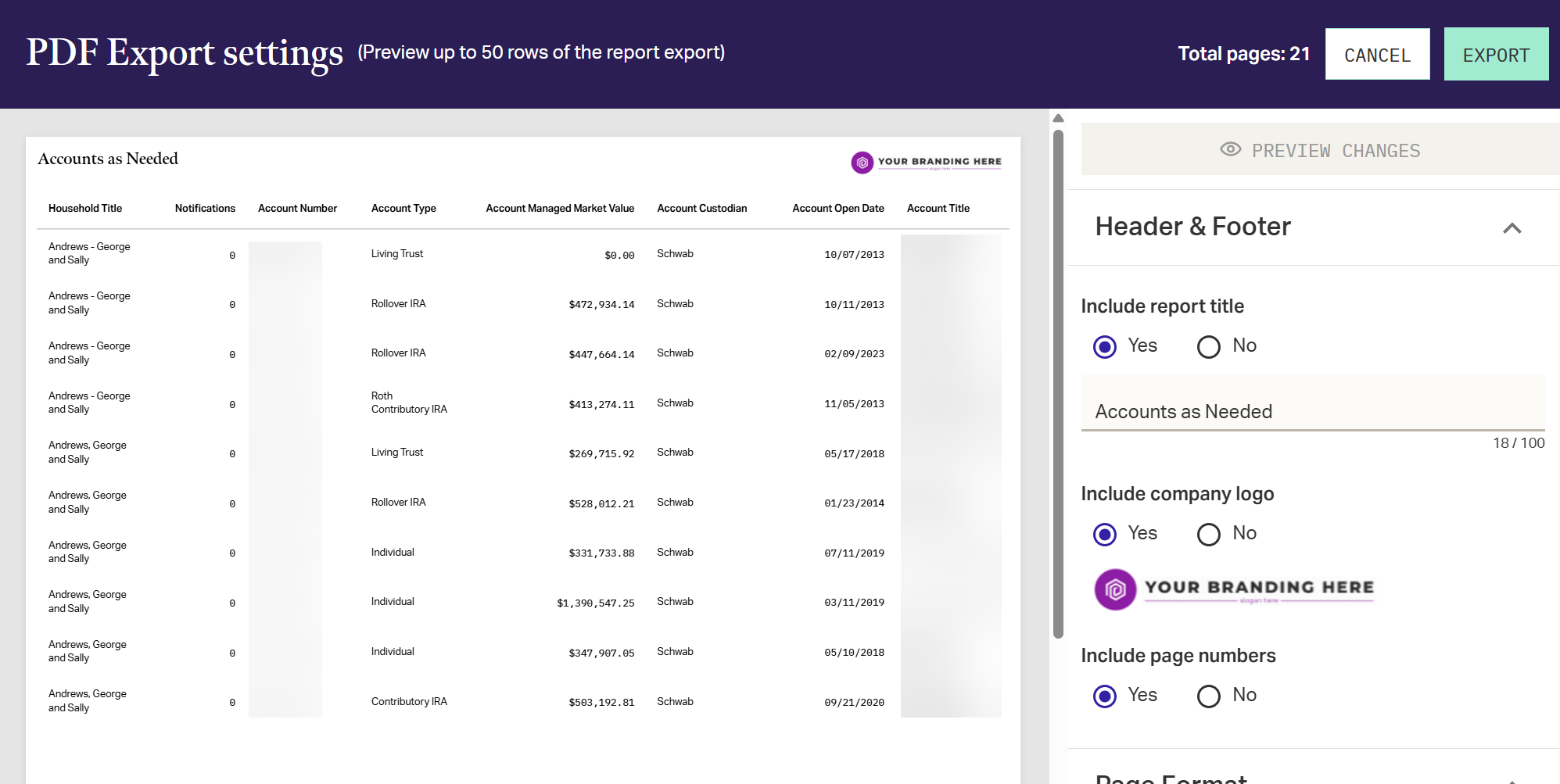
Note: The preview window does not show the full report, just a sample set of data to give you an idea of how the formatting will display.
A new notification pop-up appears in the bottom right of the screen, informing you of the report generation process. This pop-up persists if you navigate to other pages in the system, so you can continue to work elsewhere while the report is prepared.
When the file is prepared, click in the pop-up to receive your file. This file remains available for 24 hours after the request is completed.
Related Articles
Exporting Reports to CSV
Any report in the Manage Clients Dashboard can be exported to a CSV and downloaded as needed, provided your user has the correct data entitlements. When exporting, all data visible across all pages of the report is collected into a single CSV file ...Manage Clients > Reports Menu
The Reports menu of the Profile navigation menu gives quick access to financial and performance data for the profile selected. Many of the sections have controls to allow you to manipulate the data such as a column chooser, sorting, and grouping. The ...Exporting Models to CSV
If needed, the Model Center grid can be exported to CSV for use in Microsoft Excel or other similar applications. Exporting Model Center Grid Contents The CSV export creates a CSV of the complete contents of the current Model Center grid. Prior to ...Exporting Target Portfolios to CSV
If needed, the Target Portfolios grid can be exported to CSV for use in Microsoft Excel or other similar applications. Exporting Target Portfolios The CSV export only exports the currently viewed page of the Target Portfolios grid. Prior to export, ...Editing Reports
When Viewing a Report, you can make changes to the underlying structure of the report at any time, provided it is a report you own. Reports that are instead only shared to you must first be copied and changes made to that copy. Any changes you make ...