Viewing Notifications
Any time the criteria for an Alert is met, a Notification is generated if you have that alert enabled in your Notification Preferences.
The Notifications dashboard allows you to view the notification, see associated details and take appropriate actions if necessary.
Notifications are accessed either by navigating to Manage Clients > Notifications or by clicking the notification alert in the upper-right of the Portfolio Management Suite  . The number on the bell indicates how many unread notifications you have.
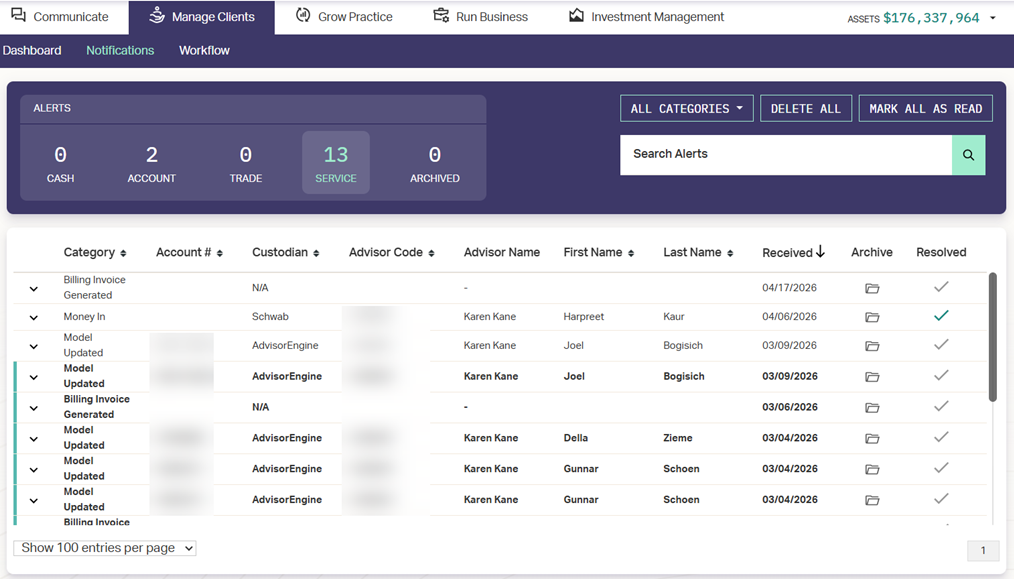
Dashboard Controls
The notifications dashboard contains a number of controls for refining your view and acting on notifications if necessary.
Grid Controls
As with many AdvisorEngine dashboards, standard grid controls are available here, including sorting by a column, choosing how many entries per page to display, and navigating between pages.
By default the view is sorted to show newest alerts first.
Select Alert type
As defined above, Notifications are divided into five alert types. The Alerts selection box in the upper left shows how many unread Notifications you have in each alert type and which type you are currently viewing.
Click a different alert type to change your view.
Filter by Category
By default, each alert type view displays all available alert categories in the grid. Use the drop-down to filter the grid down to a selected alert category. Only categories currently in the grid are listed as options in the drop-down.
Set the drop-down back to All Categories to return to the unfiltered view.
Search
If there’s a specific notification you need to find, you can use the Search Alerts box to search by all or part of the Category, Account #, Advisor Code, or First or Last Name. Simply start typing in the search box and the results are automatically filtered.
Marking Notifications as Read
Marking an alert as read removes it from being counted on the notification bell in the application header as well as the Alert Type totals on the notifications dashboard. Notifications are per-user, marking a notification as read only affects the current user. All other users will continue to see the alert as unread if they received it.
Single Alert
To mark a single Alert as read, use the expand control  at the front of the Alert’s row. Once expanded, the Alert will be considered read.
Alert Category
To mark all alerts in a single category as read, click in the upper right.
Archiving Notifications
You may Archive  Service type alerts at any time to remove the alert from the list and store it in the archived section for later recall if necessary. This will affect all users.
Resolving Notifications
Service type alerts can be marked as Resolved. If one user marks a notification as resolved, it shows as resolved for all users who received the notification. If a service notification requires outside action to be taken, you can use the Resolved checkbox to let any other users seeing the notification know that the issue has been handled.
To mark a notification as resolved, click  in the Resolved column. The checkmark turns green.
If needed, this can be undone by clicking the green checkmark to switch it back to unresolved.
Deleting Notifications
To remove a notification from your view completely, use the delete control  at the end of the Alert row.
To delete all notifications in the current view, click in the upper right. Note that Service type notifications must be archived first, then deleted from the Archived section.