Customizing Notification Preferences
Which Notifications you receive can be customized for your user. This includes which Alerts generate a notification in the notifications dashboard and which alerts additionally send you an email when they are triggered (if available).
By customizing your notification preferences, you can ensure you get the notifications you need to see without unnecessary clutter.
Notification preferences are accessed by clicking settings  in the upper right of the AdvisorEngine header bar and selecting .
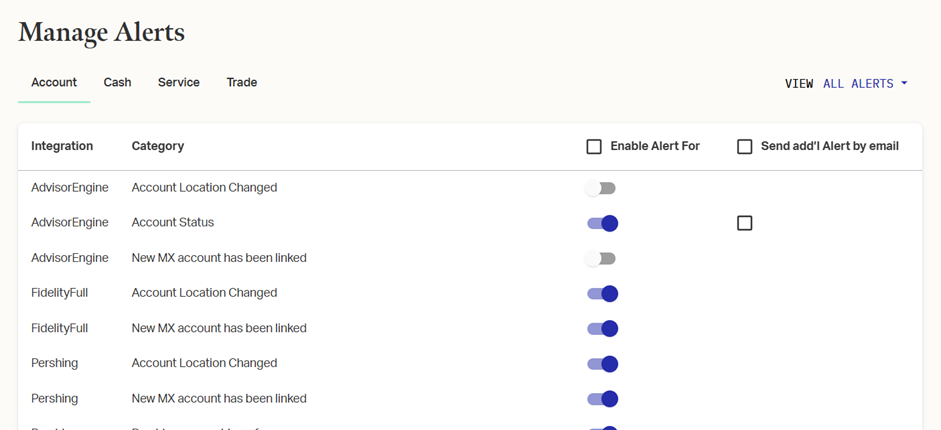
Across the top, select which Alert Type you want to view: Account, Cash, Service, or Trade.
Integration
Integration denotes the custodial source of the alert: AdvisorEngine, FidelityFull, Pershing, or Schwab. The alert is received into AdvisorEngine from the integration source listed.
Category
The category briefly describes what occurence triggers the generation of a notification for this alert. For details on the trigger criteria for specific category, check with the custodian listed in the Integration column.
Enabling Alerts
To enable a specific alert, set the toggle switch under Enable Alert For to on. To disable, switch it off. You can use the checkbox at the top of the column to enable or disable all alerts in the alert type you’re viewing.
Enabling Emails
Some alert categories allow you to additionally receive an email when an alert is triggered. Select the checkbox under Send add'l Alert by email for whichever categories you need.
Note that not all alert categories have this option. Additionally, the Alert must be enabled in the previous column for the email option to be available.
View by
Use the View drop-down in the upper right to filter the alert category list between All Alerts, Disabled Alerts, or Enabled Alerts.
Save or Revert Changes
After making changes, click at the bottom of the page to confirm your selections.
To undo changes you’ve made, click instead and then select in the pop-up. Additionally navigating away to another page and selecting on the warning pop-up has the same effect.