Adding and Editing Risk Tolerance Questionnaires
Create, edit, and manage questionnaires used for client onboarding in the Questionnaires tab.
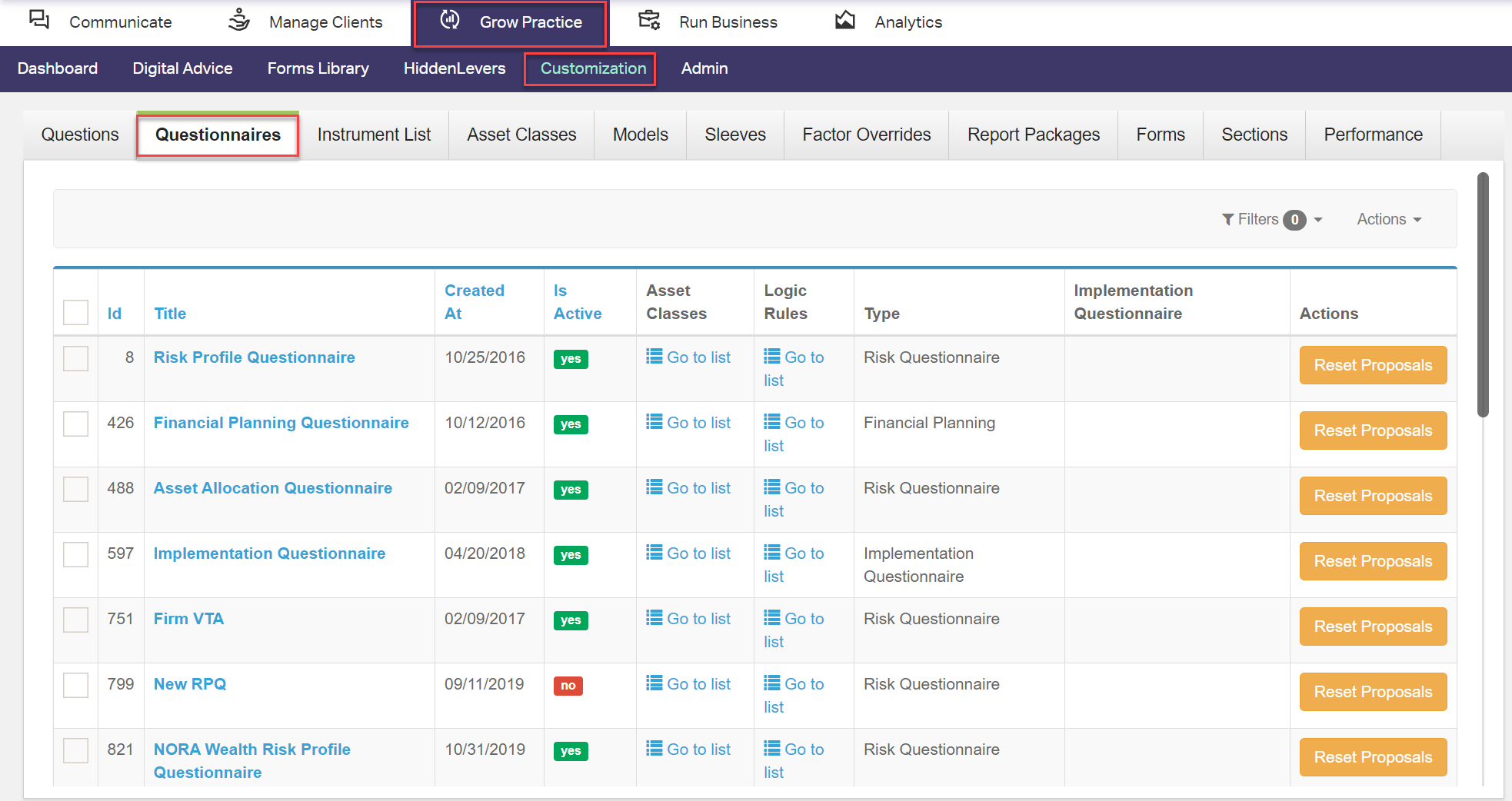
Prior to creating a Questionnaire, the Questions you want to use must be configured in the Grow Practice > Customization > Questions tab. See Adding and Editing Questions.
Creating a New Implementation Questionnaire
- Navigate to Grow Practice > Customization > Questionnaires.
- In the upper right, click .
- Set the appropriate fields:
- Title: The name of the Questionnaire for internal identification.
- Risk Questionnaire Scalar: The scale of Risk the end-client will be assessed on (default: 0-100).
- To make the Questionnaire useable, select . Leaving this box unchecked will keep the Questionnaire in a “draft” status where it cannot be selected for use.
- Create the list of Questions you want the end-client to progress through.
- Click .
- Select a Question from the drop-down.
- For each page of questions you want the user to encounter, set a unique Group number. (For example, if each Question should be its own page, each Group number will be unique. To put multiple questions on the same page, assign them all the same Group number.)
- Use the Sort Order column to drag and drop the location of a Question in the list if needed.
- Repeat adding Questions until you have completed your Questionnaire.
- Click to save your questionnaire and remain to make further changes. Click to save and close the questionnaire. Click to save the questionnaire and open another new Implementation Questionnaire form.
Tip: If a Question needs to be removed, select the Delete column checkbox for the question and click or at the bottom of the form.
Creating a New Risk Questionnaire
- Navigate to Grow Practice > Customization > Questionnaires.
- In the upper right, click .
- Set the appropriate fields:
- Title: The name of the Questionnaire for internal identification.
- Risk Questionnaire Scalar: The scale of Risk the end-client will be assessed on (default: 0-100).
- Default Risk: The risk score the end-client will begin on when starting the questionnaire (default: 0).
- Default Complexity: Set the default Model complexity (track) for this Questionnaire.
- If needed, select an Implementation Questionnaire. This will follow the Risk Questionnaire when the client goes through it.
- To make the Questionnaire useable, select . Leaving this box unchecked will keep the Questionnaire in a “draft” status where it cannot be selected for use.
- Select Use for Goals-Based Proposals to have this Questionnaire available for the Goals-based account opening process. A Questionnaire can only belong to Risk-based or Goals-based, not both.
- Create the list of Questions you want the end-client to progress through.
- Click .
- Select a Question from the drop-down.
- For each page of questions you want the user to encounter, set a unique Group number. (For example, if each Question should be its own page, each Group number will be unique. To put multiple questions on the same page, assign them all the same Group number.)
- Use the Sort Order column to drag and drop the location of a Question in the list if needed.
- Repeat adding Questions until you have completed your Questionnaire.
- Click to save your questionnaire and remain to make further changes. Click to save and close the questionnaire. Click to save the questionnaire and open another new Risk Questionnaire form.
Tip: If a Question needs to be removed, select the Delete column checkbox for the question and click or at the bottom of the form.
Editing or Deleting Questionnaires
To edit or delete a Questionnaire:
- Navigate to Grow Practice > Customization > Questionnaires.
- Click the Title of a Questionnaire to open it in edit mode.
- Make any needed changes.
- At the bottom of the form are the three options to continue:
- Update: Save and commit changes but stay in the edit form.
- Update and close: Save and return to the Questionnaire list.
- Delete: Remove the Questionnaire from the Portfolio Manager. This cannot be undone.
Note: Every time an existing questionnaire is modified, click so the changes are reflected on the Client Portal. All clients who previously completed the questionnaire will be prompted to retake the questionnaire unless this setting is supressed in Firm Profile Settings.