Laserfiche-Cities Digital: Enable Integration
CAUTION: To use the Laserfiche document integration, you must first Contact AdvisorEngine Support to have the integration enabled for your firm.
To use Laserfiche integration in AdvisorEngine CRM, Laserfiche must be configured at the firm level, set as your firm’s document provider, and each user must enable the integration at the user level.
Configuring the Laserfiche Connection
- Navigate to Settings > Firm Profile > Firm Preferences.
- Click to begin making changes.
- Click on the Integrations > Laserfiche line.
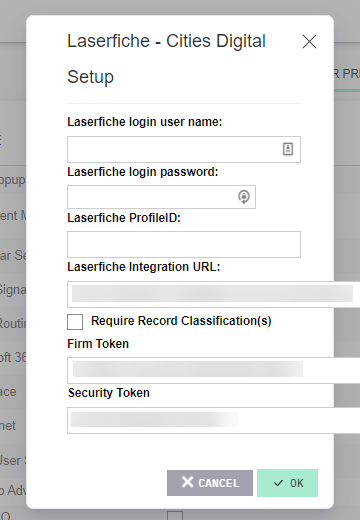
- Enter your Laserfiche URL, Firm Token, and Security Token for Laserfiche.
- Click and to commit your changes.
Enabling Laserfiche as the Firm Document Provider
- Navigate to Settings > Firm Profile > Firm Preferences if you are not still there.
- Click to begin making changes.
- Choose Laserfiche-CitiesDigital from the Document Management > Provider Selection drop-down.
- Click when finished to commit the change.
This will activate the Laserfiche Single Sign On tile to appear on the AE CRM home screen. The integration will also appear under the Integration menu on the Site Navigation bar.
Enabling Laserfiche per User
Next, each User must link their Laserfiche login to their AE CRM account. Repeat the following steps for each CRM User.
- Navigate to User
 > View Profile > User Preferences.
 - Click .
- Click on the Document Management Setup line.
- Use only the first three boxes: Enter your User Name, Password, and ProfileID.
- Optional: To limit document linking only to Client Records, select . Only Records with a Classification of Client will be available for folder-linking.
- Click .
- Click in the upper right.
Note: If you change your Laserfiche password, you will need to update it both in AE CRM and in Laserfiche CitiesDigital for the intergration to stay connected. Refer to Laserfiche documentation for further assistance in updating your password in all relevant locations.