Multi-Factor Authentication
To enable advanced login security beyond simple username and password or even a challenge question, AdvisorEngine CRM Admins can enable Multi-Factor Authentication (MFA). When conditions are met, a User will be prompted to enter a Verification Code delivered via email, text, or automated call upon login.
Enabling MFA for the Firm
- Navigate to Settings > Login Security.
- Select the checkbox for User Multi-Factor Authentication.
- Select how often the User should be prompted for a verification code from the drop-down. This setting is per device. Any login from a new device will automatically prompt for a verification code. Users will also be automatically prompted after a password change. Note that firms using the Fidelity integration will only be able to select Every Login.
- Click in the bottom right.
MFA is a firm-wide setting; if this additional login security layer is enabled, all Users will be prompted for verification codes in order to access AE CRM.
Daily Use and Additional Setup
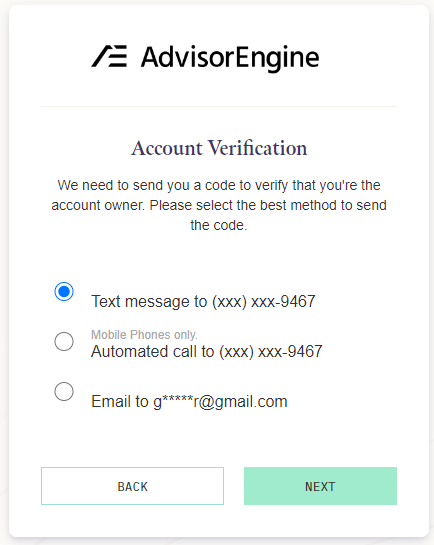
After MFA has been enabled in Login Security, users will begin receiving account verification prompts on their next login. The available delivery methods will be based on the information in User Profile.
- Text Message: If the User has registered a mobile phone number as their MFA Phone, they will be able to receive the verification code as a text. Standard messaging rates apply.
- Automated Call: If the User has registered any valid phone number as their MFA Phone, they will be able to receive the verification code as an automated voice call.
- Email: All Users will always have the option of having the verification code sent to their CRM login email address.
The delivery option selected will be selected by default for the next verification request. After selecting a method and clicking , the User will be prompted to enter the delivered code. Each code is valid for 10 minutes or 1 use, whichever comes first.