Performing Quick Searches
Quick Searches allow you to easily return a view of Records or Actions based on common search criteria from the Quick Search interface.
Quick Searches can only be performed from Record or Action Grids.
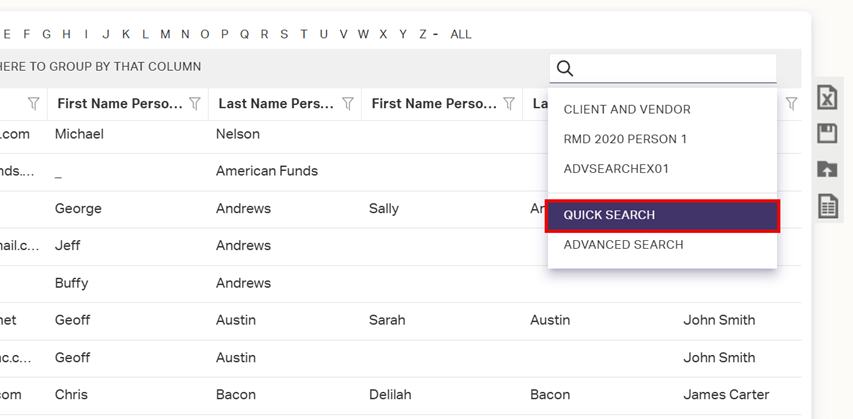
- Click the Search Bar.
- Click from the drop-down menu.
- Specify the criteria to search for in the available boxes.
- Selecting multiple criteria in the same box will use OR search logic. For example, selecting Classifications of Client and Prospect will return a list of any Record that has either or both Classifications.
- Selecting criteria across more than one box will use AND search logic between the boxes. For example, selecting a Classification of Client and an Interest of Baseball will return a list of only Clients that have an Interest of Baseball.
- Click in the bottom-left corner.
Saving Quick Searches
- Create a Quick Search as specified above.
- After setting the search criteria, name your search in the Save this Search box.
- Click .
Loading Saved Quick Searches
- Click the Search Bar.
- Click from the drop-down menu.
- Select a saved Quick Search from the Load Saved Search drop-down.
- Click .
Deleting Saved Quick Searches
- Click the Search Bar.
- Click from the drop-down menu.
- Select a saved Quick Search from the Load Saved Search drop-down.
- Click just beneath.