Running and Exporting a 13F Report
The AdvisorEngine Portfolio Management Suite contains a pre-built SEC compliant report template that can be used to file your quarterly 13F report.
Running and Exporting a 13F Report
- Navigate to Manage Clients > Dashboard.
- In the Custom Reports grid, locate the 13F Report and select it.
- After the report template populates, click in the upper right.
- When the CSV is ready for download, it shows in the bottom right of your screen. Click and save the file somewhere securely.
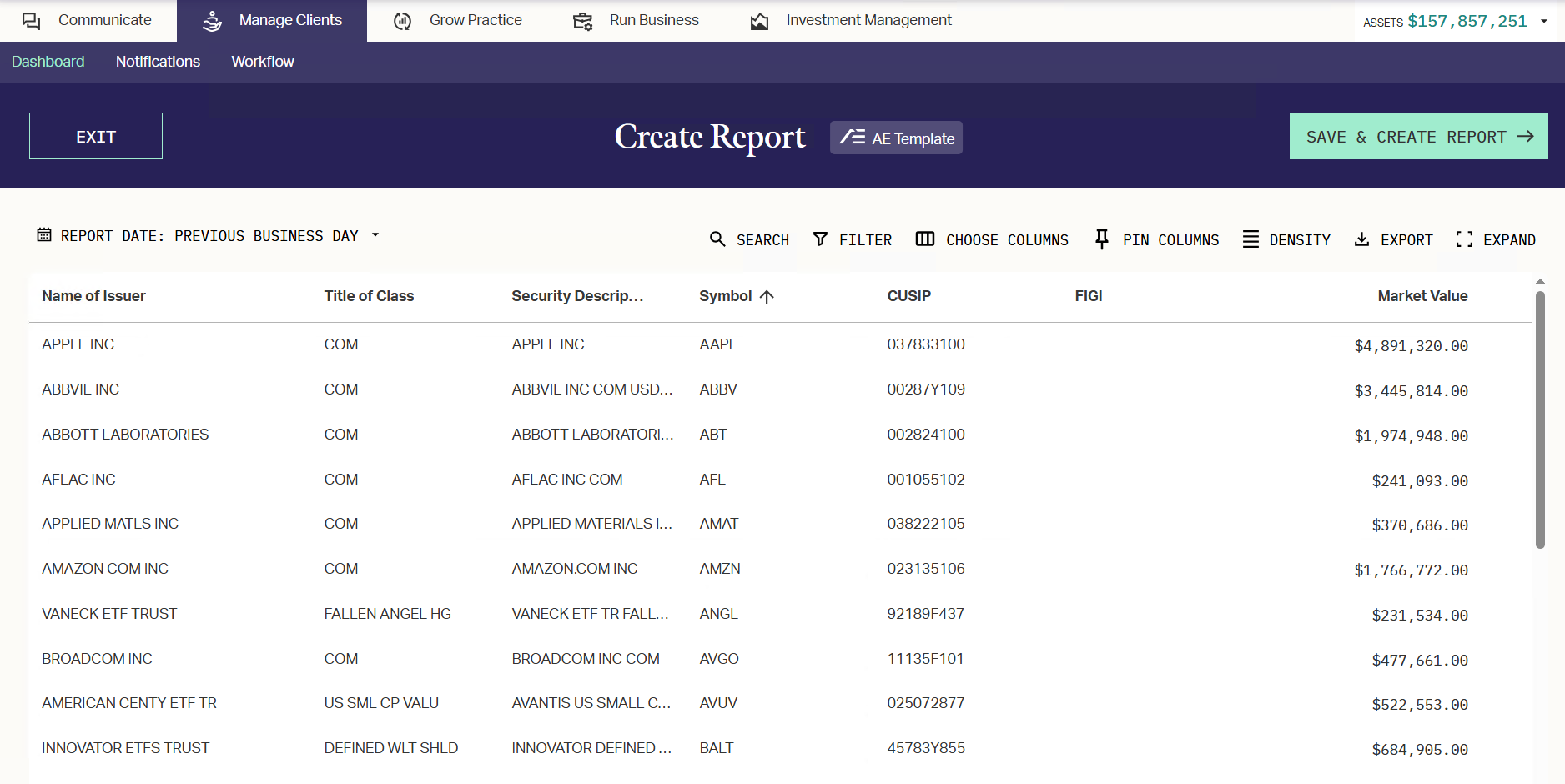

The downloaded 13F Report can now be submitted to the SEC through the usual channels after checking it internally.
Criteria Used
The 13F Report is generated by the AE system using the following methodology and logic rules:
- The SEC Reportable Security list is cross-referenced every quarter to determine eligible securities.
- Mutual funds are automatically excluded from the list.
- The sum of the position history quantity must be greater than or equal to 10,000.
- The sum of the position history market value must be greater than or equal to $200,000.
- The Security Issuer Name must not be empty.
Unpopulated Columns
Currently, the following columns do not populate with any data. Your firm is responsible for populating these columns with data as needed before submission.
- Investment Discretion
- Other Manager
- FIGI (Financial Instrument Global Identifier)
Related Articles
Manually Running Report Packages
Report Packages are designed to be scheduled and run automatically at intervals for the Accounts, Clients, or Households to which they are assigned. However, it is possible to manually run a Report Package for either an individual Account, Client, or ...Report Assistant
The Report Assistant allows you to run PDF or Excel Reports for the firm from one of the five major categories of AdvisorEngine CRM data: Actions, Assets, Insurance, Opportunities, or Records. Reports are built on Advanced Searches. Advanced Searches ...Exporting and Downloading Report Package Runs
The entire run of a Report Package can be downloaded in a zipped file of all PDFs generated if desired. Navigate to Grow Practice > Customization > Report Packages. Locate the Report Package you want to export. Click the expand control to view all ...Report Packager Overview
The Report Packager allows you to create consistent reporting across your clients at regular intervals. The structure of the report you want to present to your clients is created in the setup process, allowing you to decide what data to present in ...Creating Report Packages
See Report Packager Overview for information on how Report Packages work before beginning the setup process. To create a Report Package for ongoing use: Navigate to Grow Practice > Customization > Report Packages. Click + Create New in the upper ...