Viewing Account Billing Detail
Billing Detail shows the complete picture of how fees are calculated for any one account. This includes market values, exclusions, discounts, the complete calculation formula and which billing tiers the account fell under if applicable.
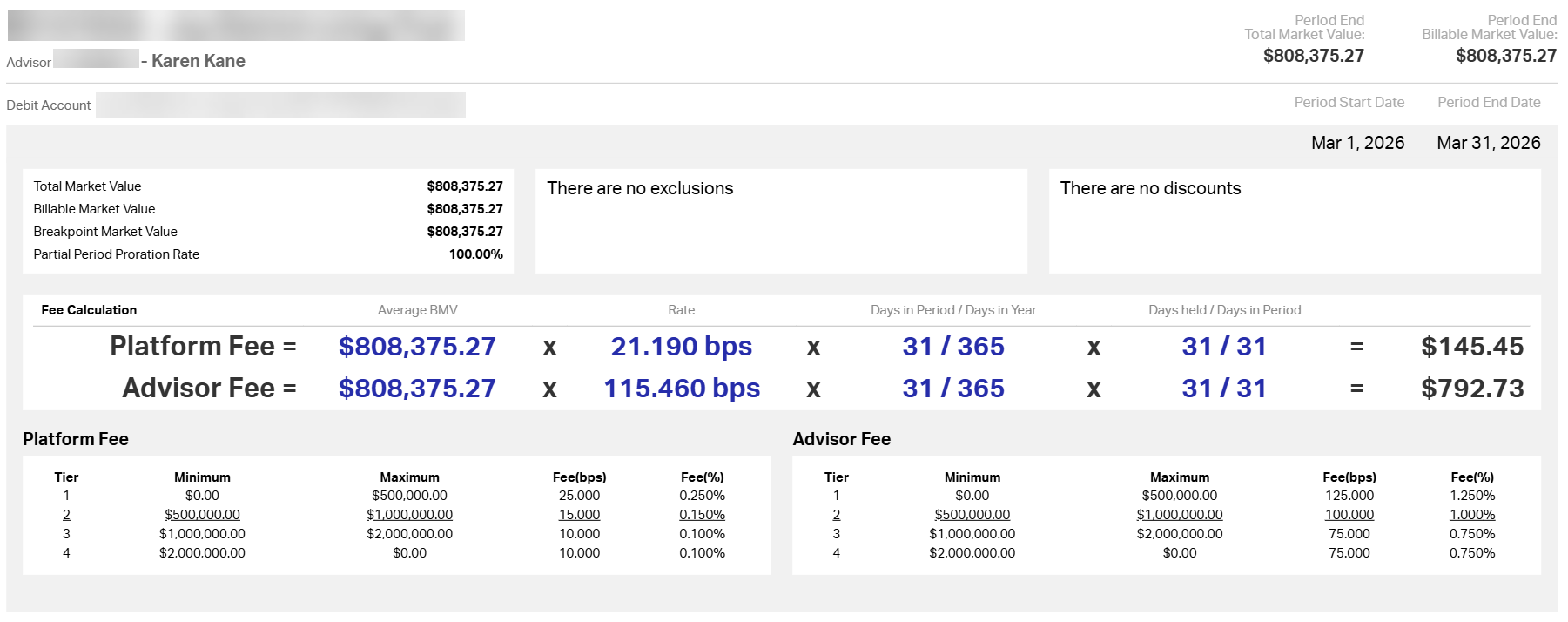
To view the report:
- Navigate to Run Business > Revenue.
- Select the billing period to view from drop-down on the Revenue Dashboard.
- In the Revenue Summary section, under Total Revenue This Period, click View More > Account Fee Collections.
- Search for or locate the account you want to see in the report grid. Click
in the Details column at the head of the account row.
Note that if you select an incomplete period, the calculations on the Billing Detail page consider the previous business date the end of the period.
Related Articles
Billing and Revenue Overview
The AdvisorEngine Portfolio Management Suite contains a robust billing engine that allows you to set broad billing settings to your firm’s preferences while fine tuning the billing settings for any client or account as needed. Calculations are made ...
Billing Settings
Billing Settings control the default behavior of the billing engine calculations that are run whenever Fee Billing Invoices are generated. These settings, along with Fee Schedules, Discounts, and Exclusions determine how much each account is billed ...
Viewing Notifications
Any time the criteria for an Alert is met, a Notification is generated if you have that alert enabled in your Notification Preferences. The Notifications dashboard allows you to view the notification, see associated details and take appropriate ...
Record Detail Overview
The primary means of viewing and editing detailed information for a Record in AdvisorEngine CRM is in the Record Detail view. Nearly every relevant piece of data for a Record can be found in this view. The Record Detail area contains a number of ...
Viewing Reports
Saved or shared reports are accessed from the Custom Reports list in the Manage Clients Dashboard. Begin by navigating to Manage Clients > Dashboard and locate the Report in the Custom Reports list. Use the Report Types Selected drop-down to filter ...