Running and Exporting a 13F Report
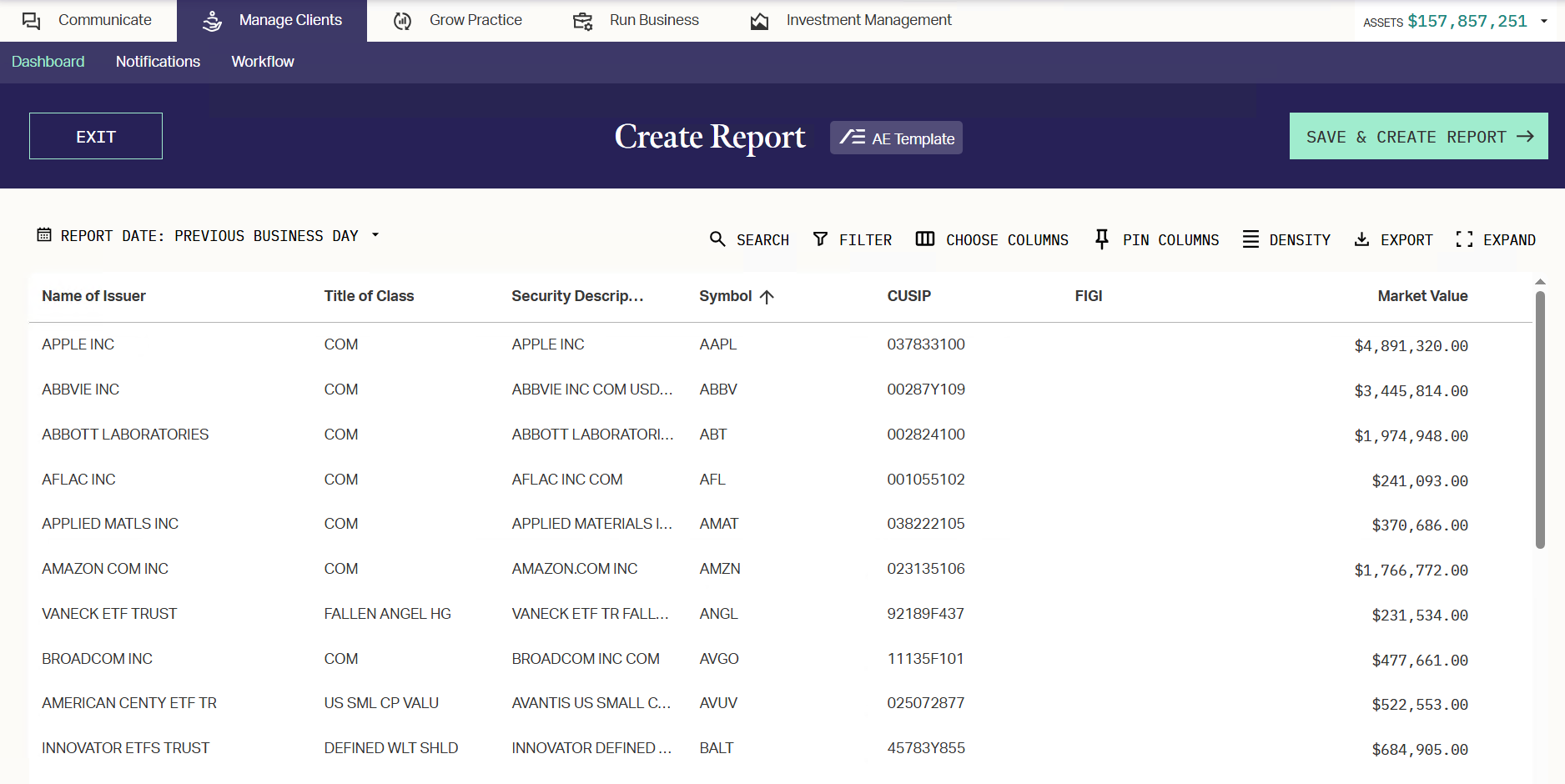
The AdvisorEngine Portfolio Management Suite contains a pre-built SEC compliant report template that can be used to file your quarterly 13F report.
Running and Exporting a 13F Report
- Navigate to Manage Clients > Dashboard.
- In the Custom Reports grid, locate the 13F Report and select it.
- After the report template populates, click Export > CSV in the upper right.

- When the CSV is ready for download, it shows in the bottom right of your screen. Click DOWNLOAD and save the file somewhere securely.

The downloaded 13F Report can now be submitted to the SEC through the usual channels after checking it internally.
Criteria Used
The 13F Report is generated by the AE system using the following methodology and logic rules:
- The SEC Reportable Security list is cross-referenced every quarter to determine eligible securities.
- Mutual funds are automatically excluded from the list.
- The sum of the position history quantity must be greater than or equal to 10,000.
- The sum of the position history market value must be greater than or equal to $200,000.
- The Security Issuer Name must not be empty.
Unpopulated Columns
Currently, the following columns do not populate with any data. Your firm is responsible for populating these columns with data as needed before submission.
- Investment Discretion
- Other Manager
- FIGI (Financial Instrument Global Identifier)
Related Articles
Manually Running Report Packages
Report Packages are designed to be scheduled and run automatically at intervals for the Accounts, Clients, or Households to which they are assigned. However, it is possible to manually run a Report Package for either an individual Account, Client, or ...
Exporting Reports to CSV
Any report in the Manage Clients Dashboard can be exported to a CSV and downloaded as needed, provided your user has the correct data entitlements. When exporting, all data visible across all pages of the report is collected into a single CSV file ...
Exporting Reports to PDF
Any report in the Manage Clients Dashboard can be exported to a PDF and downloaded as needed, provided your user has the correct data entitlements. When exporting, you can choose the layout of the page (landscape or portrait) and which columns of ...
Report Assistant
The Report Assistant allows you to run PDF or Excel Reports for the firm from one of the five major categories of AdvisorEngine CRM data: Actions, Assets, Insurance, Opportunities, or Records. Reports are built on Advanced Searches. Advanced Searches ...
Exporting and Downloading Report Package Runs
The entire run of a Report Package can be downloaded in a zipped file of all PDFs generated if desired. Navigate to Grow Practice > Customization > Report Packages. Locate the Report Package you want to export. Click the expand control to view all ...