Assigning a Performance Benchmarks to a Household
In addition to the three default Total Performance benchmarks that can appear globally in Performance reports, an advisor can designate an additional benchmark at the Household level for any individual Household.
Before begining, ensure that benchmarking capability is enabled and any benchmark that is to be assigned to one or more Households is already be defined.
Assigning a Household Benchmark
To assign a benchmark to a Household for performance reporting, first locate and open the Household using the Universal Search or the Manage Clients Dashboard.
With the Household detail open, navigate to Reports > Performance > Performance Charts.
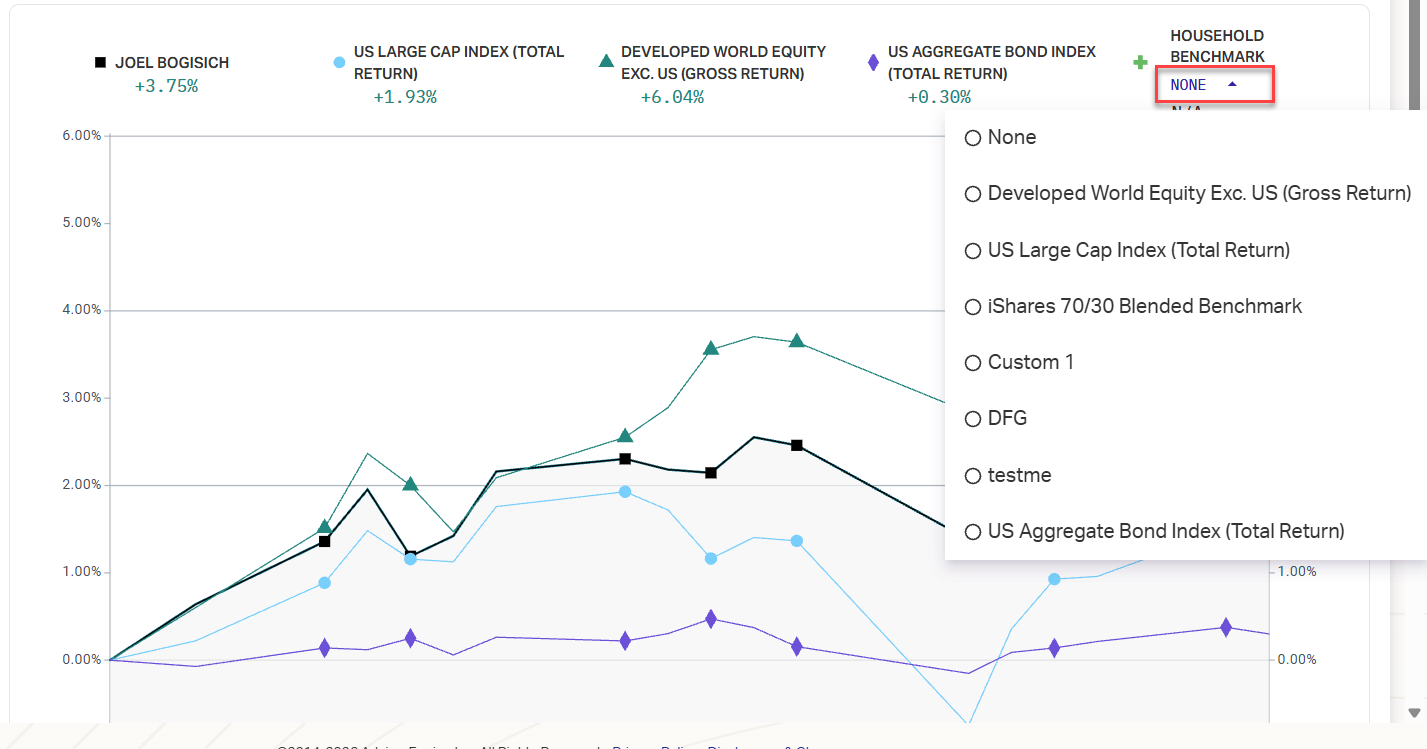
- The Benchmarks control defaults to Active for all Households, with a Household Benchmark default of “None”. The standard globally-defined benchmarks display.
- The Household Benchmark control is located at top right of the graph, at the end of the list of displayed benchmarks.
- To add a designated Benchmark just for this Household, select it from the Household Benchmark pulldown list. Once selected, it will display on the graphic and on the legend.
- If the Benchmarks toggle is disabled, all benchmarks, including the household benchmark, are removed from the graph until re-enabled.
- To remove a Household Benchmark, choose None from the Household Benchmark pulldown list.
Important Notes:
- Any designated Household Benchmark will also appear on the Performance > Performance Details report.
- If the designated Household benchmark duplicates any of the default Total Performance benchmarks that appear globally in Performance reports, it will be displayed only once.
- Household benchmarks apply to all Clients and Accounts within the Household. They can only be controlled at the Household level.
Related Articles
Setting Up and Configuring Performance Benchmarks
AdvisorEngine partners with Morningstar to provide widely-used industry standard comparative benchmarks. Authorized persons can administer their comparative performance benchmarks by navigating to Grow Practice > Customization > Performance. All ...Assigning Performance Benchmarks to Models
Using the Performance Admin tools, each model can be assigned a specific benchmark to appear in performance reporting whenever that model is represented. Before starting, ensure that the benchmark you want to use exists or has been created using the ...Assigning Debit Accounts
It is possible to debit fees for a particular Billing Household or any given Account from any other account you specify. To assign a Debit Account: Navigate to Run Business > Billing. Click Assign Debit Account from the top controls. Select a Billing ...Benchmarks for Client Portal
Advisors can now expose the same comparative benchmarks they see in their advisor platform to their end-clients through the Client Portal. See Performance Settings in Performance Benchmarks: Administration for details on activating this feature. ...Report Packager Page: Household Summary
Household Summary is a Report Packager Page providing a high-level view of the household across selected time periods. Includes the market value of each account and the growth over selected periods. Available Options Page Title Override: Set a custom ...